How to offer time slots in an email
Updated July 13, 2026·2 min read
Available to all users on all plans.View plans
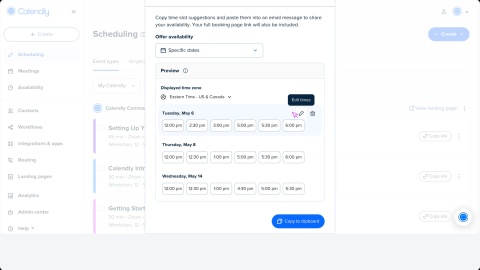

Easily share available time slots in an email so invitees can quickly pick a time that works for them.
Offer time slots
- Go to the Scheduling page.
- Find the event type you want to share and hover over it to see more options.
- Select
 Offer time slots.
 - Adjust the date range under Offer availability to choose different days.
- (Optional) Change the time zone under Displayed time zone.
- To customize availability, hover over a date and select:
 Edit times to adjust the time slots for that day.
 Remove date to take that day off your availability.
- When finished, select Copy to clipboard.
- Open your email and paste your availability into the message body.
Tip
You can also share availability from a contact hover card. Hover over a contact’s name to open a quick card with their details and shortcuts to share availability, book a meeting, or send an email.
After you send the email, invitees can select a time or see all available times on your scheduling page.
Was this article helpful?
Let us know so we can improve our content.