Notetaker overview

Notetaker provides AI-generated summaries, transcripts, and action items for your recorded meetings. Shareable via email, link, or downloadable TXT file, Notetaker recaps help you stay organized and follow up quickly.
For example, you can:
- Share recap videos or meeting notes—with optional password protection
- Ask Notetaker about your meeting to get quick answers from your meeting transcript
- Enable recap templates tailored to your industry
- Export transcripts as TXT files to streamline documentation
Before you begin
- Notetaker works with Zoom, Google Meet, and Microsoft Teams even if you're not the host or the meeting isn’t scheduled through Calendly.
- Recaps aren't created for meetings with transcripts under 250 characters or without audio.
What to expect when Notetaker joins your meetings
- If you're the host: Notetaker joins your meeting at the scheduled time, asks for recording consent, and starts recording once admitted or confirmed. It appears as a meeting participant on the call.
- If you're not the host: Notetaker still joins on your behalf, but the host must approve the recording and choose to admit or deny it. You'll be notified if the meeting is being recorded. Notetaker will appear as a meeting participant.
Learn more about what happens when Notetaker joins your meetings.
Understand recording notifications and controls
Notetaker includes built-in features to help everyone understand when a meeting is being recorded and take action if needed.
Recording notifications
When Notetaker starts recording, it posts a message in the meeting chat. This lets all attendees know the meeting is being recorded. Some meeting apps may also show their own recording alert.
Stop recording anytime
Anyone in the meeting can stop the recording by typing /stop in the chat. Attendees can also ask the host or the Calendly user to remove Notetaker.
If you use the /stop feature, recording can’t be turned back on for that meeting.
Advance notice
Attendees can be notified before the meeting that Notetaker will join and record. You can turn these email notifications on or off in Settings → AI → Notetaker.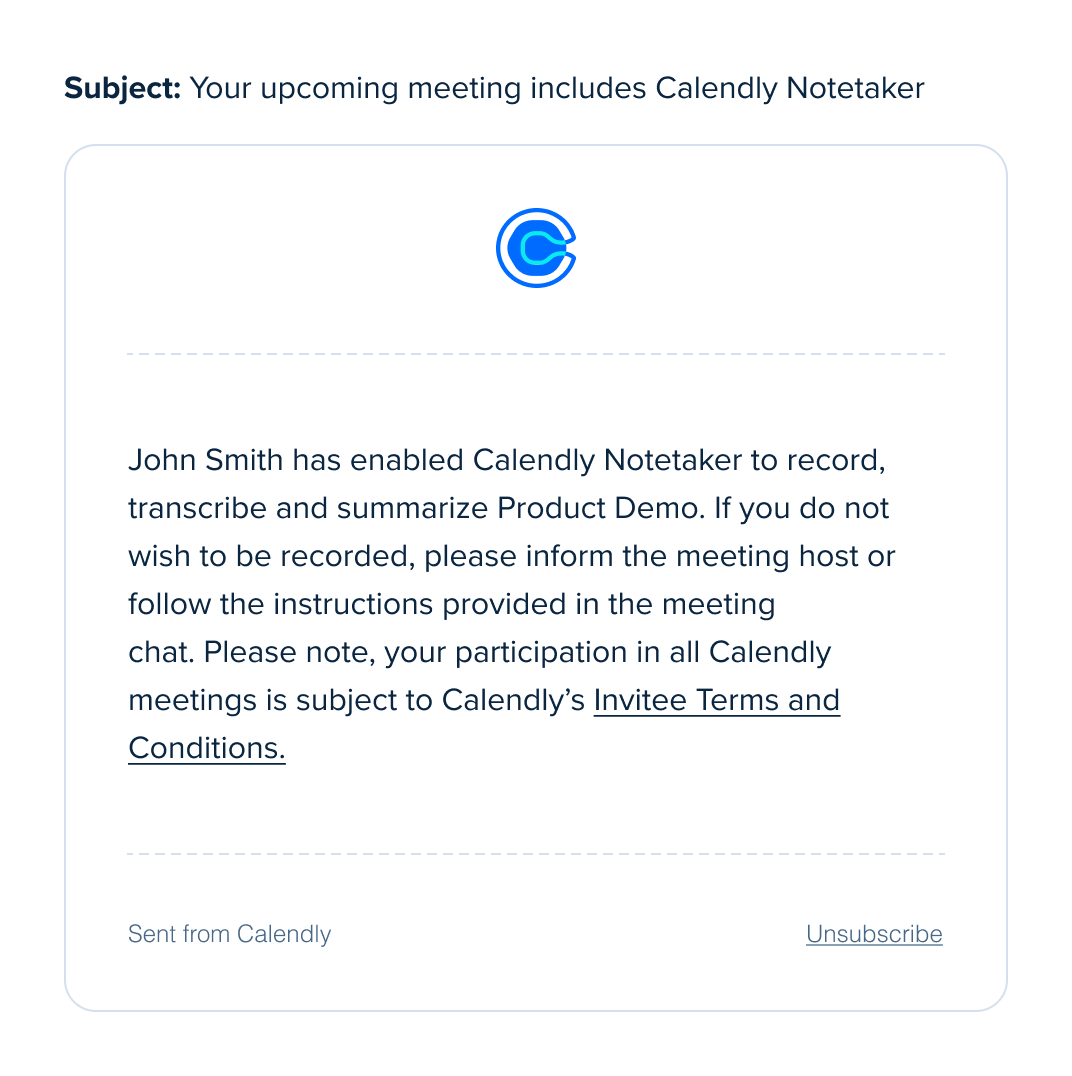
These features help attendees stay informed before and during the meeting. They also give everyone a clear way to stop the recording at any time.
Ready to learn more about Notetaker?
- How to set up Notetaker
- How to add Notetaker to your meetings
- How to share Notetaker recaps
- How to delete a Notetaker recap
- What to expect when Notetaker joins your meetings
- How to view calendar meetings in Calendly
- Troubleshooting Notetaker
Frequently asked questions
Note: This feature is currently in development and available to a limited group of small organizations. We’re gradually rolling it out to more users as we continue to improve it.
If Notetaker is available for your organization, yes. Owners and admins can disable Notetaker for the entire organization.
To learn how, follow the steps in How to remove Notetaker from meetings.
No. The meeting host must approve Notetaker in every new Zoom meeting.
You may see a “Remember this choice” option in Zoom. This only works for the meeting you are in. It does not apply to future meetings.
The “Remember” box helps if the host needs to approve more than one Notetaker to record a single meeting. It stops extra pop-ups in that session only.
For each new Zoom meeting, the host must approve the Notetaker again. There is no setting that lets it record all future meetings automatically.
Calendly provides recording notifications and controls to help you get consent for Notetaker to join and record your meeting.
You are responsible for deciding whether these features meet your compliance needs, including GDPR.
In Google Meet and Zoom, some admin settings can block chat messages from non-human participants. When this happens, attendees may not see Calendly Notetaker consent messages or the /stop command response in the meeting chat.
The Notetaker is designed to follow your meeting as it moves between the main room and breakout sessions.
Here’s how it works:
- The Notetaker will automatically join breakout rooms when invited
- It will return to the main room when the host closes the breakout sessions
- While in any room, the Notetaker continues to follow its normal behavior, including leaving if:
- All participants exit the room
- There is extended silence
Tips for a smooth experience
- Have the host close breakout rooms when the session ends
- If needed, the host can move the Notetaker between rooms at any time
This setup helps the Notetaker stay aligned with how your meeting flows, whether you're collaborating in smaller groups or back in the main session.
When you move to a different Calendly organization, your Notetaker settings and meeting recaps do not transfer over.
No. Recaps stay with the original organization and may no longer be accessible after you transfer.
Download any meeting recaps you want to keep and re-enable Notetaker after joining the new organization.