Calendly profiles
Updated March 20, 2026·2 min read
Available to Owners and Admins on all plans.View plans
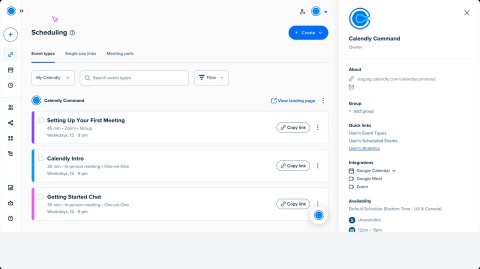

Calendly profiles help owners, admins, and group admins support their teams by reviewing each user’s groups, permissions, and integrations in one place.
Use profiles to:
- Assign new hires to the right groups and roles.
- Identify missing calendar or video conferencing connections.
- Monitor activity with quick access to analytics and scheduled meetings.
Access a user's profile
You can open a user’s profile in two ways:
- Go to the Users page in the Admin Center
- Open the user's landing page from the My Calendly dropdown
To view a profile, click the user's profile picture.
Who can view profiles
Role | Access |
Owners / admins | Can view all user profiles in the organization |
Group admins | Can view profiles of users in their group |
Users | Can view their own profile |
What’s included in a user profile
See important details about each user in one place.
- Basic info: Profile picture, name, and role
- About: Calendly link and login email
- Groups: Assigned groups and group admin roles (if applicable)
- Quick links: Event Types, scheduled meetings, and analytics
- Integrations: Connected calendar and web conferencing tools
- A
 caution icon appears if an integration isn’t connected.
 - Availability: User’s default hours
Edit a user’s group from their profile
Admins and group admins can quickly update a user’s group directly from their profile. For full group management, go to the Groups page in the Admin Center.
To make a quick change:
- Select Add group or the pencil icon in the Group section.
- Choose or create a group.
- Select Add to group to save.
Was this article helpful?
Let us know so we can improve our content.