Calendly + Zoom
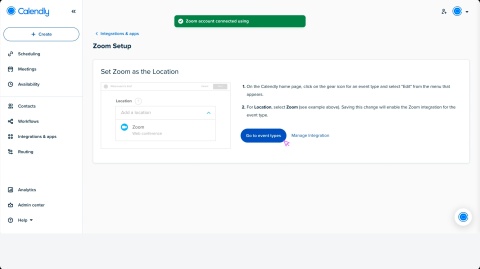

Create Zoom links automatically for every Calendly meeting. This integration adds video conferencing details to calendar invites and confirmation emails—no extra steps needed.
Connect your Zoom account
To connect your Zoom account, follow the steps in this article.
Notes for Calendly organizations with multiple users
- Zoom admins must pre-approve Calendly in the Zoom Marketplace.
- If you see a message about pre-approval, follow the steps in this article.
- Personal vs. admin-managed Zoom accounts
- By default, users connect their own Zoom accounts.
- Admins can use the Admin-managed Zoom feature to connect Zoom for everyone in the organization.
- Zoom for Collective event types
- For Collective event types, one team member must be set as the organizer to host the Zoom meeting. Set this up in your event type settings before any meetings are booked.
After Zoom is connected
When someone books a meeting, Calendly:
- Adds Zoom details to the calendar invite and confirmation email
- Shows meeting info on your Calendly Meetings page
- Lists the meeting in your Zoom Upcoming Meetings
You can also update dial-in numbers and passcodes in your Zoom account settings.
To include Zoom info in notifications and Workflows, use the dynamic location variable.
Optional settings
On the Zoom integration page, you can enable Zoom Meeting Summary for all meetings you host.
Learn more about this in Zoom's AI Companion article.
Zoom customization options
From your Zoom account, you can manage meeting settings that affect how meeting links are generated and how invitees join.
This includes:
- Using your Personal Meeting ID (PMI)
- Adding passcodes to meetings
- Turning on a waiting room
- Adjusting dial-in and audio preferences
Zoom permissions used by Calendly
Calendly uses these Zoom permissions to manage meetings for you:
User-level permissions
Permission | Why Calendly uses it |
|---|---|
meetings:read | retrieving dial in numbers for a meeting |
meetings:write | create/delete meetings when they're a "Zoom" type in Calendly |
user:read | retrieving the Zoom user's ID and email address |
Admin-managed permissions
Permission | Why Calendly uses it |
|---|---|
meetings:read:admin | retrieving dial in numbers for a meeting |
meetings:write:admin | create/delete meetings when they're a "Zoom" type in Calendly |
user:read:admin | retrieving the Zoom user's ID and email address |
For a full list of Zoom permissions, review this Zoom support article.