How to troubleshoot unavailable times that should be available
Quick answer
To troubleshoot unavailable times that should be available:
- Open the event type you want to review from your Scheduling page.
- Select Preview.
- Click Troubleshoot at the bottom of the preview page.
- Choose the date and time that appear unavailable but should be open.
- Review the list of reasons explaining why the time is not available.
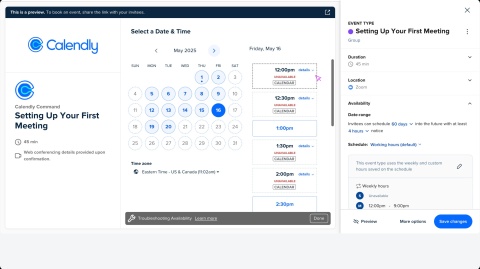

Are times showing as unavailable when they should be free? The Troubleshoot Tool can help you see why invitees can't book with you and how to fix it.
Note
Are invitees scheduling time with you when you're busy? Learn how to resolve this.
Step 1 – Find and open the Troubleshoot Tool
To access the tool:
- Log in to your Calendly account.
- Open the live scheduling page or preview of your event type.
- Scroll down and select Troubleshoot.
Step 2 – Check what's blocking your time
- Choose the date you’re investigating.
- Review the time and corresponding troubleshoot code.
If no dates or times appear, go to the Availability of your event type and review your settings.
Step 3 – What each code means and how to fix it
Each code shows why a time isn’t available. Use these tables to find the reason and learn how to fix it.
Calendar sync
These codes mean something in your connected calendar is blocking a time. You may need to change an event or reconnect your calendar.
Code | What it means | How to fix it |
CALENDAR | A "Busy" calendar event is blocking the time. | Change the event to "Free" or remove it from your connected calendar. |
NOCAL | Calendly can’t access your calendar. |
Event Type settings
These codes come from your event’s rules. You might need to change limits, time ranges, or notice settings so invitees can book again.
Code | What it means | How to fix it |
DAILY MAX | You’ve hit the daily meeting limit for that event type. | Adjust limits under Limits and buffers in the event editor. |
DURATION | Not enough time for your event. | Shorten the event or extend your availability. |
MONTHLY MAX | You’ve hit the monthly meeting limit for that event type. | Adjust limits under Limits and buffers in the event editor. |
RANGE | The date is outside your availability window. | Adjust the date range in the Availability section of your event type settings. |
TOOSOON | The time is too soon based on your minimum notice rules. | Adjust your minimum scheduling notice. |
WEEKLY MAX | You’ve hit the weekly meeting limit for that event type. | Adjust limits under Limits and buffers in the event editor. |
Calendly meetings
These codes show that another Calendly meeting is blocking the time. You can fix this by rescheduling or adjusting meeting rules.
Code | What it means | How to fix it |
EVENT | Another Calendly event of this event type is booked. | Reschedule from your Meetings page or use Free/busy rules to allow overlapping. |
GROUP | Group event has max attendees. | Increase the max invitee number from the Meetings page. |
OVERLAP | Another Calendly event is booked. | Reschedule from your Meetings page or enable Free/busy rules. |
Availability settings
These codes mean something in your general availability is blocking bookings, like a holiday or meeting limit.
Code | What it means | How to fix it |
HOLIDAY | This date is marked as a holiday. | Edit holidays from your Availability page. |
MEETING LIMIT | A meeting limit has been reached for this host. | The host must adjust the meeting limit in their own account. |
Team scheduling
These codes appear for team events, like Collective or Round Robin. They tell you when a host isn’t available or when scheduling rules need an update.
Code | What it means | How to fix it |
HOST | One or more hosts are unavailable for a Collective event type. | Make sure all hosts are free at the desired time. |
ROUNDROBIN | No host is available based on the distribution rules. | Update Round Robin host availability or distribution settings. |
UNFAIR | Scheduling at this time would distribute meetings unfairly between assigned hosts. | Adjust distribution settings for Round Robin events. |
Edge conditions / System exceptions
These codes show special cases that stop scheduling, like buffers, past times, or reserved spots.
Code | What it means | How to fix it |
BUFFER | A buffer is blocking this time. | |
PAST | The selected time is in the past. | Choose a future date. |
RESERVED | A poll or pending meeting is holding this time. | Clear reserved times from the Single-use Links or Meeting polls tab of the Scheduling page. |
Frequently asked questions
Calendly continues to block times for events it created—even if marked “free" in your connected calendar. Cancel or reschedule the event in Calendly, or enable Free/busy rules to allow booking over these events.
Check for all-day events marked as "Busy". Still not sure? Review your calendars for conflicts, including Calendar setting for extra calendars. Learn more about managing 'Busy' vs. 'Free' calendar statuses.
Calendly adjusts automatically. Times remain accurate, though time zone labels may not reflect the change right away.
You can manage schedules for your teammates or create different availability for multiple event types.
Set date specific hours to adjust your availability on the days you're traveling. Each schedule is set in one time zone. Enter your hours according to when you'll be available locally, and Calendly will display the right times to your invitees.