How to send Workflow emails from your Gmail or Outlook account
Updated March 20, 2026·2 min read
Available to all users on Standard, Professional, Teams, and Enterprise plans.View plans
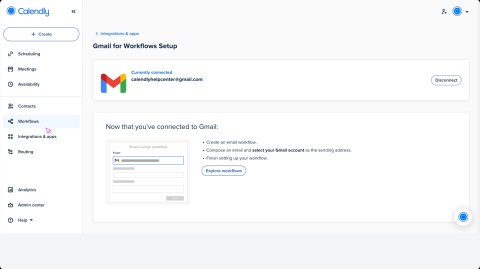

Use Workflows to send emails directly from your Gmail or Outlook account. Use your own email address instead of the default notifications@calendly.com to make your messages more personal. Recipients can reply to your Workflows, and you'll see responses in your inbox. This feature is only available for personal event types.
Before you begin
- You can only send Workflow emails from one connected email account (Gmail or Outlook). If both are connected, Calendly will default to sending from notifications@calendly.com.
- Workflow messages will appear in your Sent folder.
- You can also review the Timeline on the Meetings page in Calendly to confirm when the email was sent.
Integrate your Gmail or Outlook account
- Go to the Integrations page and select Gmail for Workflows.
- Select Connect Gmail.
- Accept the permissions requested. The “Send email on your behalf” permission must be enabled for the integration to work.
After integrating your Gmail or Outlook account
Once you've connected your email account, apply it to your Workflows. When creating or editing a Workflow, go to the email action settings. Under What email address should this email be sent from?, select your Gmail or Outlook account.
Moving forward, all new emails sent through Workflows will come from your email address.
Was this article helpful?
Let us know so we can improve our content.