How to share your scheduling link
Updated March 31, 2026·5 min read
Available to all users on all plans.View plans

Easily share your Calendly scheduling links so invitees can book time with you using landing pages, event types, and more.
Share a landing page
A landing page is a public page where invitees can view and book all active event types for a personal or team page. Share this link to let them choose the option that works best.
- Go to the Scheduling page.
- (Optional) Open the My Calendly dropdown to switch to another user or team page.
- Select the three dots
 in the top-right corner, then choose Copy link.
Share an event type scheduling page
An event type scheduling page lets invitees book a specific event type. Share this link when you want someone to schedule that exact meeting.
- Go to the Scheduling page.
- (Optional) Open the My Calendly dropdown to switch to another user or team.
- Find the event type you want to share and hover over it to see more options.
- On the event type card, choose one of the following:
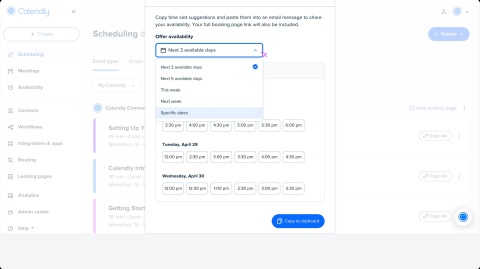
 Offer time slots in email – Insert available time slots into an email.
 Single-use links – Create a link that expires after one booking.
 Share availability - Send your scheduling link from Gmail or Outlook.
 Copy link - Copy the event link to paste anywhere.
Note
The image preview for a Calendly link is automatically pulled from your profile or organization logo. Updating your logo will update the preview for newly shared links.
Additional ways to share your link
- Add to website – Embed Calendly on your website so visitors can schedule with you directly.
- Email signature – Include your link in your email signature for easy access.
- Browser extensions – Quickly access your links in Chrome, Firefox, and Microsoft Edge.
Was this article helpful?
Let us know so we can improve our content.