How to set up a team page
Updated March 20, 2026·2 min read
Available to Owners and Admins on Standard, Professional, Teams, and Enterprise plans.View plans
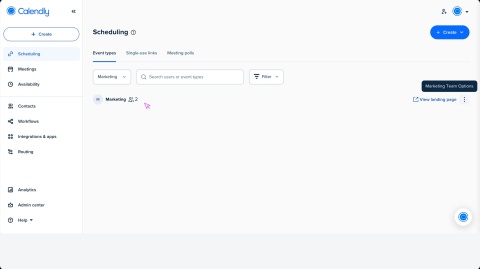

Create a team page to organize and manage collaborative event types, making it easier for invitees to book with the right team members.
Before you begin
- You must have at least two active users to create a Team Page. You can invite users to your Calendly organization from the Admin center > Users page.
- Give manager permissions so members can manage the team’s event types and settings.
- Team members should connect their calendars and video conferencing integrations before hosting meetings. Admins can view users' connection statuses from their profiles.
Set up a team
- Go to the Scheduling page.
- Open the My Calendly dropdown.
- Next to Teams, select + New Team.
- Enter a team name.
- Set a unique URL for the team page.
- Customize the welcome message for invitees.
- Add your team members by entering their name or email address.
- (Optional) Select the can manage team checkbox to grant team manager permissions to a member.
- Admins automatically have this access with a pre-selected, grayed-out checkbox.
- Select Upload picture to add a team avatar.
- Set up your team's time zone.
- When finished, select Create.
Managing team pages
- To access your team page, go to the Scheduling page, then select your team from the My Calendly dropdown.
- To edit or delete a team, go to the team page, select the
 three dots in the top-right corner, and choose an option.
 - To edit your teams landing page URL, select the three dots in the top-right corner of your team page, and choose Edit Team.
What's next?
Now that you've created a team page, set up team event types and share scheduling links:
- How to create a Round Robin team event
- How to create a Collective team event
- How to let invitees choose their host using a team page
- How to share your scheduling link
Was this article helpful?
Let us know so we can improve our content.